In an increasingly connected world, the idea of using a “wireless” device often conjures images of a bustling Wi-Fi network. However, for document scanners, true wireless freedom isn’t always about relying on your home or office Wi-Fi. Many modern wireless scanners offer a variety of robust connection methods that allow you to digitize documents quickly and efficiently, even without an existing Wi-Fi network. This guide will explore these alternative connection pathways, ensuring you can connect your wireless scanner to your computer, tablet, or smartphone with speed and ease, no matter the environment.
Understanding how to bypass traditional Wi-Fi is crucial for professionals on the go, those with limited network access, or anyone seeking a direct, secure scanning solution. From peer-to-peer wireless technologies to direct cable links, several options empower you to maintain productivity and streamline your document management without being tethered to a network router. Let’s delve into the different types of wireless scanner connections that don’t depend on an internet connection or a shared Wi-Fi infrastructure, helping you choose the best method for your specific needs.
Types of Wireless Scanner Connections Without a Router
Connecting a wireless scanner doesn’t always necessitate a traditional Wi-Fi network. Several alternative methods allow for direct communication between your scanner and a computing device, offering flexibility and independence from a central router. These options are particularly useful for mobile setups, temporary workstations, or environments where network access is restricted or unavailable.
Bluetooth Scanners
Table is empty.Bluetooth technology provides a short-range wireless connection ideal for linking scanners with smartphones, tablets, and laptops. Unlike Wi-Fi, Bluetooth creates a direct, one-to-one connection, making it an excellent choice for personal use or small, localized scanning tasks. Setting up a Bluetooth connection typically involves enabling Bluetooth on both devices, putting the scanner into a discoverable pairing mode, and then selecting the scanner from your device’s Bluetooth settings. This method is common for portable document scanners and many barcode scanners.
2.4G Wireless (USB Dongle)
Many wireless scanners, especially those designed for business and retail, utilize a dedicated 2.4G wireless connection via a USB dongle. This small receiver plugs directly into your computer or host device, establishing a proprietary wireless link with the scanner. This connection type operates on the same frequency band as Wi-Fi but does not require a router, creating its own independent wireless channel. It offers a stable and often faster connection than Bluetooth, making it suitable for environments where interference might be a concern or where a slightly longer range is needed. These scanners are typically plug-and-play, with minimal setup.
Wi-Fi Direct Technology
Wi-Fi Direct is an ingenious technology that allows Wi-Fi-enabled devices to connect directly to each other without requiring a wireless router or access point. Essentially, the scanner itself acts as a temporary Wi-Fi access point, broadcasting its own network name (SSID) to which other devices can connect. This provides a robust and high-speed connection, similar to a standard Wi-Fi network, but in a peer-to-peer fashion. It’s an excellent solution for scanning larger documents or multiple pages quickly to a smartphone, tablet, or computer, offering a greater range and data transfer speed than Bluetooth.
USB Direct Connection
While this guide focuses on wireless solutions, it’s worth noting that almost all wireless scanners retain the option for a direct USB cable connection. This provides the most reliable and often the fastest data transfer, bypassing any wireless complexities. It’s a failsafe option when wireless connections are problematic, or for initial setup and driver installation. For situations where you need guaranteed stability and speed, or when other wireless methods are simply not an option, a direct USB link remains invaluable. Many wireless scanners are equipped with a USB port, offering versatile connectivity to a host device.
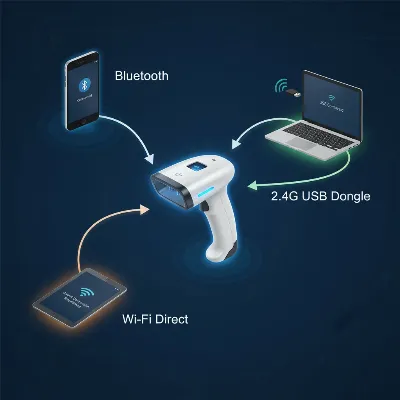 Illustrative diagram showing a wireless scanner connecting to devices via Bluetooth, 2.4G USB dongle, and Wi-Fi Direct, highlighting direct connections without a central router.
Comparing Wireless Scanner Connection Methods
Choosing the right connection method for your wireless scanner depends heavily on your specific needs, including portability, speed requirements, and the devices you intend to use. Each non-Wi-Fi method offers distinct advantages and trade-offs.
| Feature | Bluetooth | 2.4G Wireless (USB Dongle) | Wi-Fi Direct | USB Direct |
|---|---|---|---|---|
| Range | Short (up to 30 feet/10 meters) | Medium (up to 100 feet/30 meters) | Medium to Long (up to 150 feet/45 meters) | Very Short (cable length) |
| Speed | Moderate | Fast | Very Fast | Fastest |
| Setup Complexity | Easy (pairing process) | Very Easy (plug-and-play) | Moderate (initial configuration on scanner) | Easy (driver installation, plug-and-play) |
| Device Compat. | Smartphones, tablets, laptops, some desktops | Laptops, desktops (requires USB port) | Smartphones, tablets, laptops, desktops | Laptops, desktops |
| Interference | Moderate (shared 2.4GHz) | Low (dedicated channel) | Moderate (shared 2.4/5GHz, direct link) | None |
| Primary Use | Portable, personal, barcode scanning | Retail, warehouse, quick office scans | High-volume mobile scanning, larger files | Desk-bound, critical scanning, initial setup |
| Network Req. | None | None | None (creates its own network) | None |
Bluetooth is ideal for light, on-the-go scanning to mobile devices where extreme speed isn’t the priority. Its ubiquity makes it a convenient option for quick connections without complex setups. The 2.4G wireless dongle offers a more robust and faster connection for environments where a dedicated, interference-free link is preferred for consistent performance. Wi-Fi Direct, while using Wi-Fi radio waves, stands out for its balance of speed and range, allowing high-quality scans to be transferred quickly to multiple devices without needing an existing router. Finally, USB direct connection provides unparalleled reliability and speed, serving as the benchmark for critical scanning tasks and a solid fallback.
Choosing the Right Scanner and Connection
Selecting the appropriate wireless scanner and its connection method depends entirely on your usage scenarios and requirements. Understanding these factors will ensure you pick a device that truly serves your needs, enabling fast and efficient scanning without relying on a Wi-Fi network.
Determine Your Usage Needs
- Personal Use / Casual Scanning: If you only need to scan a few documents occasionally, perhaps to your smartphone or laptop, a portable scanner with Bluetooth or a 2.4G wireless dongle might be sufficient. These are typically compact and easy to carry.
- Small Office / Mobile Professional: For professionals who frequently scan documents while traveling or in various locations without consistent Wi-Fi, a scanner with Wi-Fi Direct is highly beneficial. It offers faster speeds and handles higher volumes than Bluetooth, making it suitable for scanning multi-page contracts or reports to a laptop or tablet.
- Retail / Warehouse Operations: Barcode scanners often offer 2.4G wireless dongle or Bluetooth connectivity for quick, reliable data capture to a POS system or inventory management device. Speed and consistency are key here.
- High-Volume / Quality Critical Scanning: While wireless options are convenient, for tasks demanding the highest speed, resolution, or scanning very large batches, a scanner that can also connect directly via USB is indispensable. This ensures data integrity and maximum throughput without wireless interference.
Key Factors to Consider
- Scanning Speed and Volume: If you need to scan many pages quickly, Wi-Fi Direct or a 2.4G wireless connection will generally outperform Bluetooth. For occasional, single-page scans, Bluetooth is perfectly adequate.
- Document Size and Type: Standard Document Scanners (flatbed or ADF) typically offer Wi-Fi Direct or USB options for handling various paper sizes and types. Portable or barcode scanners are more specialized.
- Host Device Compatibility: Ensure the scanner’s wireless features are compatible with your intended device (Windows laptop, Mac, Android tablet, iOS smartphone). Bluetooth is widely compatible, while Wi-Fi Direct and 2.4G wireless dongles might have specific driver or app requirements.
- Portability: Mobile scanners are designed for portability, often featuring battery power and compact designs, making them ideal companions for fieldwork or small office spaces. Their wireless connectivity options (Bluetooth, Wi-Fi Direct) are tailored for mobile use.
- Software and Drivers: Always check what software or drivers are needed. Many wireless scanners are plug-and-play, especially with a 2.4G dongle or USB connection, but others might require dedicated apps (e.g., for Wi-Fi Direct on mobile) or full driver suites for advanced functionality.
- Budget: Scanners with advanced Wi-Fi Direct capabilities might be at a higher price point than basic Bluetooth or USB dongle models. Match your budget to your essential connectivity needs.
Step-by-Step Connection Guides
Connecting your wireless scanner without relying on a traditional Wi-Fi network involves distinct steps for each method. Here’s how to set up the most common non-Wi-Fi wireless connections.
Connecting via Bluetooth
Bluetooth is excellent for short-range, direct connections to mobile devices or computers with built-in Bluetooth.
- Charge and Power On: Ensure your scanner is charged and powered on.
- Activate Bluetooth on Scanner: On your scanner, activate Bluetooth pairing mode. This often involves holding a specific button (often a Bluetooth icon) until an indicator light flashes or scanning a special barcode found in the scanner’s manual.
- Enable Bluetooth on Your Device:
- Windows: Go to
Settings>Bluetooth & devices>Add device>Bluetooth. - macOS: Go to
System Settings>Bluetooth. - Android/iOS: Go to
Settings>Bluetooth.
- Windows: Go to
- Pair Devices: Your device will search for available Bluetooth devices. Select your scanner’s name from the list. Follow any on-screen prompts, such as confirming a PIN or pairing code.
- Install Software (if needed): Some scanners may require a companion app (for mobile) or drivers (for PC) to function fully after pairing.
- Start Scanning: Once connected, open your scanning software or app and begin scanning.
Connecting via 2.4G Wireless (USB Dongle)
This method typically involves a dedicated USB receiver for a hassle-free, direct wireless link.
- Charge and Power On: Ensure your scanner is charged and turned on.
- Plug in USB Dongle: Insert the 2.4G USB receiver (dongle) into an available USB port on your computer.
- Automatic Pairing: Most 2.4G wireless scanners are designed for automatic pairing. The computer should recognize the dongle, and the scanner should connect within seconds. An indicator light on the scanner might change from flashing to solid to confirm the connection.
- Install Drivers (if prompted): While often plug-and-play, your operating system might automatically install necessary drivers. If not, follow any instructions provided by the scanner manufacturer (e.g., from a CD or website).
- Test Connection: Open your preferred scanning application or a text editor (for barcode scanners) and try scanning to verify the connection.
Connecting via Wi-Fi Direct
Wi-Fi Direct allows your scanner to create its own wireless network for direct connection to your devices.
- Power On Scanner: Turn on your scanner.
- Activate Wi-Fi Direct on Scanner: Navigate to the scanner’s control panel or settings menu. Look for
Network Settings,Wi-Fi Direct, orSimple AP Mode. Enable this feature. The scanner will typically display its own Wi-Fi Direct SSID (network name) and a password. - Connect Your Device to Scanner’s Wi-Fi Direct Network:
- On your computer, tablet, or smartphone, go to your Wi-Fi settings.
- Look for the scanner’s Wi-Fi Direct SSID (e.g., “DIRECT-XYZ-Scanner”).
- Select it and enter the password displayed on the scanner’s screen or in its manual.
- Install Scanner Software/App: Once connected to the scanner’s direct network, you’ll need the manufacturer’s scanning software or a mobile app (like Epson Smart Panel for Epson scanners) to initiate scans.
- Scan: Use the software/app to locate your scanner and begin the scanning process. This connection is maintained as long as you are connected to the scanner’s Wi-Fi Direct network.
> “Using Wi-Fi Direct is like having a personal, high-speed network just for your scanner and device. It’s incredibly convenient when you’re on the go and need to digitize large files quickly.” – Dr. Elena Petrov, Wireless Technology Expert
Connecting via USB Direct
This is the most straightforward, wired approach, requiring no network whatsoever.
- Connect USB Cable: Use the appropriate USB cable (usually USB-A to USB-B, or USB-C for newer devices) to connect your scanner directly to your computer.
- Install Drivers: For the first-time connection, your operating system may automatically install generic drivers. For full functionality, it’s best to install the specific drivers and scanning software from the manufacturer’s website or an installation disc.
- Power On and Scan: Ensure the scanner is powered on. Open your scanning application (e.g., Windows Fax and Scan, or the manufacturer’s utility) and select your scanner to begin.
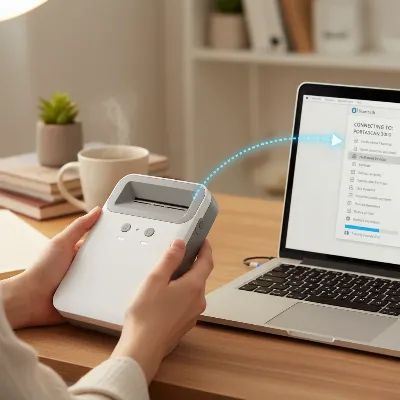 A person pairing a portable document scanner with a laptop via Bluetooth, with a blue glowing connection line between them, illustrating the direct pairing process.
Top Wireless Scanners for Non-Wi-Fi Connectivity
While specific models constantly evolve, several brands consistently offer excellent wireless scanners with robust non-Wi-Fi connection options. When looking for a scanner that excels in Bluetooth, 2.4G wireless, or Wi-Fi Direct capabilities, consider these types and features:
Portable Document Scanners (with Bluetooth or Wi-Fi Direct)
- Fujitsu ScanSnap Series (e.g., iX100, iX1300): Known for their ease of use and solid performance, many ScanSnap models offer Wi-Fi Direct for connecting to mobile devices and computers without a router. They are highly portable and often battery-powered, making them perfect for mobile professionals. The iX100, for instance, is a classic for on-the-go scanning directly to a phone or tablet.
- Epson WorkForce DS-Series Portable Scanners: Models like the DS-70 or DS-80W are compact and feature Wi-Fi Direct, allowing direct connection to smartphones, tablets, or laptops. They are often bundled with powerful scanning software for image enhancement and organization.
- Brother DS-Series Mobile Scanners: Brother offers a range of portable scanners (e.g., DS-640, DS-940DW) that support Wi-Fi Direct connectivity, enabling users to scan documents directly to their mobile devices or computers in various environments.
Barcode Scanners (with Bluetooth or 2.4G Wireless Dongle)
- Zebra CS6080: This series offers both Bluetooth and optional 2.4G wireless connectivity, providing extreme versatility for retail, inventory, and healthcare applications. It’s a high-performance scanner known for reliability.
- Tera Wireless Barcode Scanners: Many Tera models provide 3-in-1 connectivity: Bluetooth, 2.4G wireless (via a USB dongle), and USB wired. These are highly versatile for various business needs, offering plug-and-play simplicity with the dongle.
- NADAMOO Wireless Barcode Scanners: Similar to Tera, NADAMOO often features 2.4G wireless via a dongle and Bluetooth, catering to a wide range of POS and inventory tasks, ensuring quick and accurate data capture without a network.
Multi-Function Devices (MFDs) with Wi-Fi Direct
While primarily designed for network integration, many all-in-one printers/scanners now include Wi-Fi Direct as a standard feature.
- HP OfficeJet Pro/DeskJet Series: Many HP all-in-one printers feature “HP Wireless Direct,” allowing direct scanning (and printing) from mobile devices and computers without connecting to a router.
- Epson Expression/WorkForce Series: Epson’s multifunction devices often boast Wi-Fi Direct, providing a convenient way to scan documents directly to a laptop or smart device.
- Brother MFC-Series: Brother’s MFDs also commonly support Wi-Fi Direct, offering an alternative for direct scanning when a Wi-Fi network isn’t available or preferred.
When evaluating these options, always check the specific model’s specifications for the exact wireless connectivity methods supported. Look for explicit mention of Bluetooth, “2.4G Wireless with USB dongle,” or “Wi-Fi Direct” (sometimes called “Simple AP Mode” or “Wireless Direct”) to confirm its capabilities beyond standard Wi-Fi network integration.
Tips for Using and Maintaining Wireless Scanners Without Wi-Fi
Optimizing your wireless scanner’s performance and ensuring its longevity, especially when using non-Wi-Fi connections, requires a few best practices. These tips will help you maximize efficiency and minimize common issues.
Efficient Scanning Without a Network
- Pre-Scan Preparation: Ensure documents are free of staples, clips, and tears. Flatbed scanners are great for delicate items, while ADF scanners require neat stacks for smooth feeding.
- Driver and Software Updates: Always keep your scanner’s drivers and scanning software (including mobile apps) up to date. Manufacturers frequently release updates that improve performance, add features, and fix bugs, especially for wireless connectivity.
- Optimize Scan Settings: For faster transfer speeds, consider adjusting the scan resolution. While higher DPI (dots per inch) yields better quality, it also results in larger file sizes, which take longer to transmit, even over direct wireless links like Wi-Fi Direct. Choose a resolution appropriate for the document’s purpose (e.g., 200-300 DPI for text documents, higher for photos).
- Scan to Local Storage: When connecting via Bluetooth, 2.4G wireless, or Wi-Fi Direct, your scans are typically transferred directly to the connected device’s local storage (e.g., a specific folder on your laptop, or the photo gallery/documents folder on your smartphone). Familiarize yourself with these default locations to quickly access your digitized files.
- Battery Management: Wireless scanners are often battery-powered. Keep your scanner charged, especially before mobile scanning sessions, to avoid interruptions. Some scanners can operate while charging via USB.
Cleaning and Maintenance
Regular cleaning is crucial for maintaining scan quality and extending your scanner’s lifespan.
- Clean the Glass Platen/Rollers: For flatbed scanners, wipe the glass with a lint-free cloth and a mild, non-abrasive glass cleaner. For ADF scanners, clean the rollers and glass strips that documents pass over, as dust and residue can cause streaks or jams. Use cleaning kits recommended by the manufacturer.
- Dust Removal: Use compressed air to clear dust from vents and crevices. Avoid spraying directly into sensitive components.
- Calibration: Some scanners require periodic calibration to ensure accurate color and image reproduction. Refer to your manual for instructions.
- Software Reset: If you encounter persistent connectivity issues, a software reset on the scanner or reinstalling drivers on your computer can often resolve the problem.
Troubleshooting Common Issues
- Connection Drops: If your Bluetooth or Wi-Fi Direct connection frequently drops, try moving closer to the scanner to reduce interference. Ensure no other devices are trying to connect simultaneously, which can cause conflicts. For 2.4G wireless, ensure the USB dongle is securely plugged in.
- Scanner Not Detected:
- Confirm the scanner is powered on and in the correct pairing/direct connection mode.
- Verify Bluetooth is enabled on your device, or you are connected to the scanner’s Wi-Fi Direct SSID.
- For 2.4G wireless, try plugging the dongle into a different USB port.
- Restart both the scanner and your host device.
- Scanning Software Issues: If the software isn’t launching or recognizing the scanner, try reinstalling it. Check compatibility with your operating system.
- Streaks or Poor Quality Scans: This is almost always a sign of dirty glass or rollers. Clean them thoroughly.
Conclusion
The ability to connect a wireless scanner without relying on an existing Wi-Fi network offers unparalleled flexibility and efficiency for various users. Whether through the direct, short-range convenience of Bluetooth, the robust simplicity of a 2.4G wireless USB dongle, or the high-speed, peer-to-peer capabilities of Wi-Fi Direct, you have multiple avenues to digitize your documents quickly and securely. Even the traditional USB direct connection remains a reliable fallback, ensuring that your scanning tasks are never truly dependent on network availability.
By understanding the distinct advantages of each connection method, selecting a scanner that aligns with your specific needs, and following proper setup and maintenance guidelines, you can harness the full power of your wireless scanner in any environment. This independence from traditional Wi-Fi not only enhances productivity for mobile professionals but also provides peace of mind in situations where network access is limited or nonexistent. What direct wireless connection method best suits your daily workflow, and how has it transformed your document management?
Frequently Asked Questions
Can I scan directly to my smartphone or tablet without Wi-Fi?
Yes, absolutely! Many wireless scanners offer Bluetooth or Wi-Fi Direct connectivity, allowing you to connect directly to your smartphone or tablet without needing a router or an internet connection. You’ll typically use a manufacturer’s app to manage scans.
What is the difference between Wi-Fi and Wi-Fi Direct for scanners?
Standard Wi-Fi connects your scanner to a central wireless router, which then connects to other devices. Wi-Fi Direct allows your scanner to create its own direct wireless connection to a device (like a laptop or phone) without needing a router, essentially acting as its own access point.
Do I need to install drivers for a wireless scanner connected without Wi-Fi?
For USB direct connections, drivers are often necessary for full functionality. For Bluetooth and 2.4G wireless (USB dongle), many devices are plug-and-play, but a manufacturer’s app or basic drivers might enhance functionality. Wi-Fi Direct usually requires a dedicated app on your smart device.
Is scanning without Wi-Fi secure?
Direct connections like Bluetooth, 2.4G wireless (USB dongle), and Wi-Fi Direct are generally secure for personal use as they are point-to-point (or scanner-to-device). Wi-Fi Direct connections often require a password, adding another layer of security.
Can I use a wireless scanner without Wi-Fi for multiple computers?
For Bluetooth and 2.4G wireless dongle connections, scanners typically connect to one device at a time. Wi-Fi Direct can sometimes support multiple connections, but performance may vary, and it usually requires switching the primary connection if another device is actively scanning.