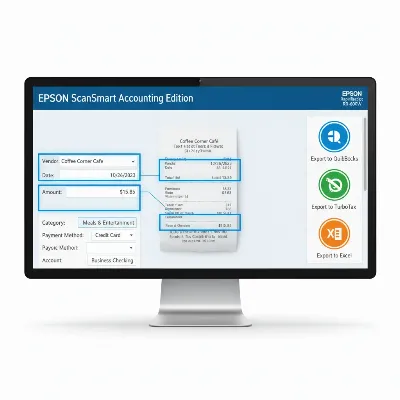
Navigating the world of document scanners can be overwhelming, but for anyone looking to streamline their digital workflow, a wireless document scanner is an indispensable tool. Whether you’re a home user looking to declutter, a small business aiming for a paperless office, or a large enterprise managing vast archives, the right scanner can transform how you handle documents. The convenience of wireless connectivity, coupled with seamless integration with both Mac and Windows operating systems, offers unparalleled flexibility and efficiency. This guide will delve into everything you need to know to choose, use, and maintain the perfect wireless document scanner for your specific needs, ensuring your transition to a more organized, digital environment is as smooth as possible.
Document Scanners: A Comprehensive Guide
Understanding the different types of document scanners available is the first step in making an informed decision about your purchase. Each design caters to distinct scanning needs and volumes, offering unique advantages depending on the tasks at hand. Whether you’re dealing with delicate old photographs or stacks of business invoices, there’s a scanner type built for it.
Common Types of Document Scanners
Wireless document scanners come in several primary configurations, each optimized for different scanning tasks and environments.
- Flatbed Scanners: These scanners feature a flat glass surface where documents are placed for scanning. Ideal for fragile items, books, magazines, or irregularly shaped documents that cannot be fed through an automatic feeder. While some flatbeds offer wireless capabilities, their primary advantage is versatility for non-standard items.
- Automatic Document Feeder (ADF) Scanners: ADF scanners are workhorses designed for efficiency, automatically feeding multiple pages through the scanning mechanism. They are perfect for batch scanning multi-page documents, offering high speeds and duplex (two-sided) scanning in a single pass. Many modern ADF scanners include robust wireless connectivity options for network sharing.
- Mobile Scanners: Compact and lightweight, mobile scanners are built for portability, allowing users to scan documents on the go. They are often battery-powered and connect wirelessly to laptops, tablets, or smartphones, making them ideal for field agents, remote workers, or those with limited desk space. Their speed and capacity are typically lower than desktop models.
- Specialty Scanners: This category includes scanners designed for very specific purposes, such as photo scanners for high-resolution image capture, large-format scanners for blueprints and posters, or receipt scanners for expense tracking. While some may offer wireless features, their specialized nature dictates their primary use case.
Comparison Table of Document Scanner Types
Choosing the right scanner often comes down to balancing speed, resolution, document handling, and budget. Here’s a detailed comparison to help you weigh the pros and cons of each common type.
| Feature | Flatbed Scanner | ADF Scanner | Mobile Scanner | Specialty Scanner |
|---|---|---|---|---|
| Scanning Speed | Slow (manual page placement) | Very Fast (up to 100+ ppm/ipm) | Moderate to Slow (typically 10-20 ppm) | Varies widely by type (e.g., very fast for receipts, slow for large format) |
| Resolution | High (up to 1200 dpi, great for photos) | Good to High (up to 600 dpi, excellent for documents) | Moderate (up to 600 dpi, sufficient for documents) | Very High for photos (e.g., 4800 dpi), moderate for others |
| Document Size | Versatile (A4/Letter to custom sizes, books) | Standard A4/Letter, often legal-size, sometimes long documents | A4/Letter, often smaller documents (receipts, cards) | Specific to purpose (e.g., photo sizes, large format, business cards) |
| Special Features | Scans books/fragile items, 3D objects, OCR software | Duplex scanning, large ADF capacity, advanced image processing | Portability, battery-powered, direct-to-cloud scanning | High color accuracy, specialized feeders, specific software |
| Price Range | Mid-range to High | Mid-range to Very High | Low to Mid-range | Varies widely (from low for receipt to very high for large format) |
| Pros | Best for delicate items, books, irregular documents | High efficiency for multi-page documents, fast, duplex | Extremely portable, great for remote work, space-saving | Optimized for specific media (photos, blueprints, cards) |
| Cons | Slow for multi-page documents, larger footprint | Not ideal for fragile items, books, or very thick media | Lower capacity, slower, not for high-volume tasks | Limited versatility, often higher cost for specific function |
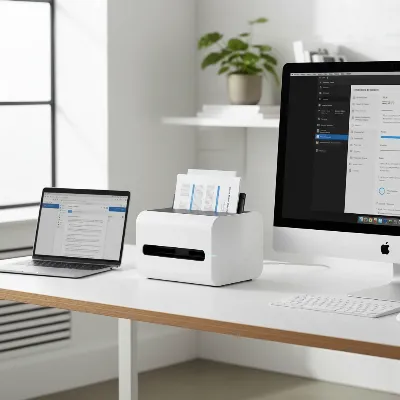 A modern wireless document scanner in a bright, organized office environment, scanning a stack of documents with a laptop and a Mac computer in the background.
Guide to Choosing a Wireless Document Scanner
Selecting the best wireless document scanner involves carefully assessing your unique scanning requirements and balancing them against the available features and your budget. This process ensures you invest in a device that genuinely enhances your productivity rather than becoming a cumbersome addition.
Determine Your Usage Needs
The first and most crucial step is to define why you need a scanner and how you intend to use it.
- Personal Use/Home Office: If you’re digitizing family photos, receipts, or occasional household documents, a compact ADF or a mobile scanner with decent resolution and moderate speed might suffice. Wireless connectivity is a major plus for decluttering cable spaghetti.
- Small Office/Small Business: For businesses dealing with invoices, contracts, and customer records, an ADF scanner with robust duplexing capabilities and a higher daily duty cycle is essential. Wireless networking allows multiple users to share the device efficiently.
- Large Enterprise/Workgroup: High-volume environments demand professional-grade ADF scanners with exceptional speed, large feeder capacities, advanced image processing features (like blank page detection, auto-orientation), and robust network management tools.
Key Factors to Consider
Once your needs are clear, evaluate these technical specifications and features:
- Scanning Speed: Measured in pages per minute (ppm) or images per minute (ipm, for duplex scanning), this is crucial for high-volume tasks. Look for scanners offering 25 ppm or more for efficient document processing.
- Resolution (DPI): Dots per inch (dpi) indicates image clarity. 200-300 dpi is typically sufficient for text documents and OCR (Optical Character Recognition), while 600 dpi or higher is better for photographs or documents with fine details.
- Paper Size and Handling: Ensure the scanner supports the sizes of documents you’ll be scanning most often (e.g., A4, Letter, Legal, business cards, long documents). Also, consider its ability to handle different paper weights and types without jamming.
- Connectivity Options: For wireless convenience, Wi-Fi is paramount. Look for scanners supporting Wi-Fi Direct for peer-to-peer connection or standard Wi-Fi for network integration. USB 3.0 is a good backup for faster wired transfers.
- Included Software: Comprehensive software can make a huge difference. Look for features like OCR for searchable PDFs, document management tools, cloud integration (Dropbox, Google Drive), and easy image editing. Compatibility with both Mac and Windows is non-negotiable for flexible environments.
- Daily Duty Cycle: This specifies the maximum number of pages the scanner is designed to handle per day without excessive wear. Match this to your expected scanning volume to ensure longevity.
Budget Considerations
Wireless document scanners range from under $200 for basic mobile units to over $1,000 for professional high-volume models.
- Entry-Level (Under $300): Often mobile or basic ADF scanners suitable for light personal use. They offer essential wireless functions and decent quality.
- Mid-Range ($300-$700): This segment provides a balance of speed, features, and image quality, perfect for small offices or power users. Expect robust ADFs, good software, and reliable wireless performance.
- High-End (Over $700): Designed for heavy use, these scanners boast top-tier speed, advanced image processing, large capacities, and enterprise-grade network capabilities.
“A well-chosen wireless document scanner not only digitizes your paperwork but also acts as a hub for efficient document management, making information instantly accessible across all your devices, regardless of your operating system.” – Dr. Eleanor Vance, Digital Workflow Consultant
Top Wireless Document Scanners for Mac and Windows
While specific models evolve rapidly, several brands consistently lead the market in offering reliable, high-performance wireless document scanners compatible with both Mac and Windows. These scanners often combine fast scanning, excellent image quality, and user-friendly software.
- For High-Volume Office Environments: Look for models known for their robust Automatic Document Feeders (ADF) that can handle hundreds of pages at once and offer fast duplex scanning. Features like advanced paper protection, ultrasonic multi-feed detection, and sophisticated image cleanup software are common. These scanners are often network-ready, allowing multiple users to access them wirelessly.
- For Small Office/Home Office (SOHO) Users: Mid-range ADF scanners strike an excellent balance between speed, features, and cost. They provide reliable wireless connectivity, good daily duty cycles, and intuitive software that integrates well with cloud services. Many offer one-touch scanning to various destinations, simplifying common tasks.
- For Mobile Professionals: Compact and lightweight mobile scanners are perfect for users who need to scan on the go. These devices typically run on battery power and connect via Wi-Fi to laptops or mobile devices. They excel at scanning receipts, business cards, and single-page documents quickly and efficiently, even if they lack the speed or capacity of desktop models.
- For Versatility and Mixed Media: Some scanners offer a hybrid design, combining an ADF with a flatbed. This setup provides the best of both worlds, allowing for fast batch scanning of standard documents while also accommodating fragile items, books, or oddly sized materials that cannot go through an ADF. Wireless functionality on these models adds significant flexibility.
When evaluating top scanners, prioritize those with strong reviews for driver stability on both Mac and Windows, consistent wireless performance, and comprehensive software suites that include Optical Character Recognition (OCR) for creating searchable PDFs.
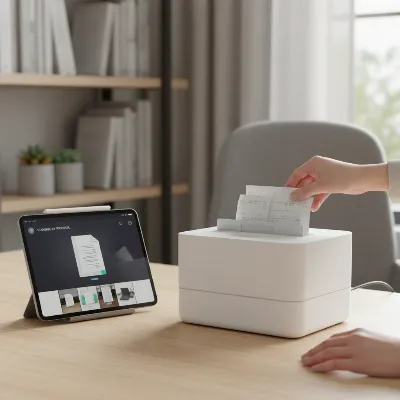 A person using a compact wireless document scanner at home, scanning receipts and documents on a desk with a clean, modern aesthetic.
Tips for Using and Maintaining Your Document Scanner
Maximizing the lifespan and efficiency of your wireless document scanner involves more than just plugging it in. Proper usage and regular maintenance can prevent common issues, ensure optimal performance, and safeguard your investment.
Effective and Fast Document Scanning
To get the most out of your scanner, adopt these practices:
- Prepare Documents: Before scanning, remove staples, paper clips, sticky notes, and smooth out any wrinkles. This prevents jams and ensures a clear scan. For very delicate items, use protective sleeves.
- Adjust Settings: Don’t always use the highest resolution. For text documents, 200-300 dpi is usually sufficient and results in smaller file sizes, which are faster to process and store. Use higher dpi for images or documents requiring fine detail.
- Utilize Duplex Scanning: If your scanner supports it, enable duplex (two-sided) scanning for multi-page documents to save time and reduce manual steps.
- Batch Scanning: Group similar documents together. Scanning a batch of invoices at once is more efficient than scanning them individually with separate settings.
- Leverage OCR: Always use OCR software to convert scanned documents into searchable and editable text files. This makes finding information much easier later on.
- Name and Organize: Develop a consistent file naming convention and folder structure immediately. This saves countless hours of searching for files in the future. Cloud integration can automate some of this.
Cleaning and Maintenance
Regular cleaning is vital for maintaining scan quality and preventing mechanical issues.
- Clean Rollers: Dust and paper debris can accumulate on feed rollers, leading to paper jams or streaks on scanned images. Use a lint-free cloth lightly dampened with isopropyl alcohol or a specialized scanner cleaning solution to wipe down the rollers regularly.
- Clean Glass Surfaces/Sensors: For flatbed scanners or the imaging glass strip in ADFs, use a soft, lint-free cloth and a non-abrasive glass cleaner or isopropyl alcohol. Dust, fingerprints, and smudges on these surfaces will appear on your scans.
- Check Consumables: Some scanners have consumable parts like pick rollers and separation pads that wear out over time. Consult your scanner’s manual for recommended replacement intervals and kits.
- Software Updates: Keep your scanner drivers and software updated. Manufacturers frequently release updates to improve performance, fix bugs, and enhance compatibility with new operating systems (Mac and Windows).
Troubleshooting Common Issues
Encountering problems is inevitable, but many are easily resolved:
- Paper Jams: Gently pull jammed paper in the direction of the paper path. Never force it. Clean the rollers if jams are frequent.
- Streaks on Scans: This almost always indicates dirt or debris on the scanner’s glass or rollers. Clean them thoroughly.
- Connectivity Issues: Ensure the scanner is powered on and within range of your Wi-Fi router. Restart both the scanner and your computer/router. Check firewall settings, especially after a software update.
- Software Not Launching/Crashing: Reinstall the scanner software and drivers from the manufacturer’s website. Ensure your operating system is up to date.
Conclusion
Investing in a wireless document scanner for your Mac and Windows setup is a smart move towards a more organized, efficient, and paperless future. By understanding the different types available, carefully considering your specific needs, and committing to proper usage and maintenance, you can select a device that not only meets but exceeds your expectations. From digitizing family heirlooms to streamlining corporate workflows, the right document scanner empowers you to manage information with unprecedented ease and flexibility. What steps will you take today to embrace the power of digital document management?
Frequently Asked Questions
What are the main benefits of a wireless document scanner?
Wireless document scanners offer unparalleled flexibility, allowing you to place the scanner anywhere within Wi-Fi range without being tethered by cables. This reduces clutter, enables multiple users to share the device easily across a network (both Mac and Windows), and facilitates scanning directly to cloud services or mobile devices, enhancing productivity and accessibility.
Can all wireless document scanners connect to both Mac and Windows?
Most reputable wireless Document Scanner manufacturers design their products with cross-platform compatibility in mind. They typically provide drivers and software suites that support both macOS and various Windows versions, ensuring seamless integration and functionality regardless of your operating system. Always check the product specifications for explicit compatibility before purchasing.
What resolution is best for scanning documents versus photos?
For standard text documents, a resolution of 200-300 DPI (Dots Per Inch) is usually sufficient to ensure readability and effective Optical Character Recognition (OCR), resulting in manageable file sizes. For photographs or documents requiring fine detail and high-quality image reproduction, a resolution of 600 DPI or higher is recommended to capture nuances accurately.
How important is the Automatic Document Feeder (ADF) capacity?
The ADF capacity is crucial if you frequently scan multi-page documents. A larger ADF allows you to load more pages at once, enabling uninterrupted batch scanning and significantly speeding up the digitization process for high-volume tasks. For occasional single-page scans, a smaller ADF or even a flatbed scanner might suffice.
What features should I look for in a scanner’s software?
Essential software features include Optical Character Recognition (OCR) for converting scanned images into searchable and editable text, document management tools for organization, and direct integration with popular cloud storage services like Dropbox, Google Drive, or SharePoint. User-friendly interfaces and robust image processing capabilities (e.g., auto-cropping, de-skewing) also enhance the scanning experience.