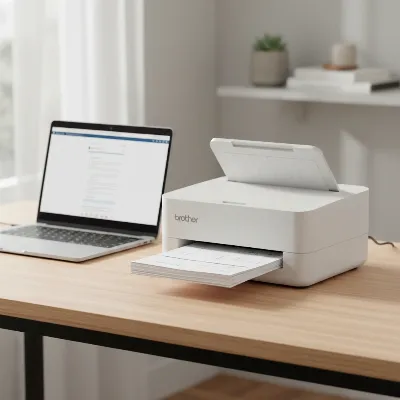
In today’s fast-paced digital world, transforming physical paperwork into accessible digital files is essential for efficiency, organization, and security. Whether you are managing personal records, streamlining a small office, or handling high volumes for a large enterprise, knowing how to effectively scan documents into PDF format can dramatically enhance your workflow. The Portable Document Format (PDF) is universally recognized for its ability to preserve document formatting, ensure widespread compatibility, and offer robust security features, making it the preferred choice for digital archiving and sharing. This guide will walk you through various scanning methods, help you understand different scanner types, and provide expert tips to master the art of quick and easy PDF conversion.
Document Scanners: A Comprehensive Guide
Converting paper documents into digital PDF files can be accomplished using a variety of devices and software, each suited to different needs and volumes. Understanding the tools available is the first step toward building an efficient scanning process. From dedicated hardware to versatile mobile applications, the right solution depends on your specific requirements, such as document type, scanning volume, desired quality, and budget.
Common Types of Document Scanners
Document scanners come in various forms, each offering unique advantages for different scanning scenarios. Choosing the correct type ensures optimal speed, quality, and convenience for your tasks.
-
Flatbed Scanners: These are perhaps the most recognizable scanners, featuring a flat glass surface where documents are placed. Flatbed scanners are ideal for fragile items, bound materials like books and magazines, or irregular-sized objects that cannot be fed through an automatic mechanism. They typically offer high resolution for detailed scans, making them versatile for various media types.
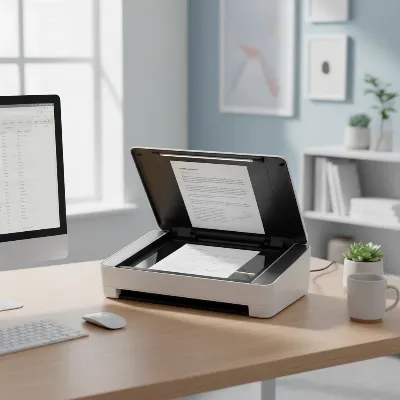 A flatbed scanner with a document placed on its glass surface, ready for scanning to PDF.
 -
Sheet-Fed (ADF) Scanners: Designed for speed and efficiency, sheet-fed scanners utilize an Automatic Document Feeder (ADF) to process multiple pages consecutively. Documents are fed through the machine, making them perfect for high-volume tasks such as digitizing stacks of invoices or reports. Many models support duplex scanning, capturing both sides of a page in a single pass, significantly boosting productivity.
-
Portable Scanners: Compact and lightweight, portable scanners are built for scanning on the go. These devices are often battery-operated or USB-powered, making them convenient for business travelers, field agents, or anyone needing to digitize receipts, business cards, or notes away from a traditional office setup. While offering unmatched mobility, they usually have lower resolutions compared to larger desktop models.
-
Desktop Scanners: This broad category encompasses many scanners designed for typical home or office use, often incorporating both flatbed and ADF functionalities. They are general-purpose devices capable of handling a moderate volume of daily scanning tasks, often bundled with software for managing and converting documents to PDF.
-
Specialty Scanners: Beyond the common types, specialized scanners cater to niche requirements:
- Production Scanners are high-volume, high-speed devices for industrial-scale scanning, capable of processing thousands of pages per hour.
- Photo Scanners are engineered for superior color accuracy and high resolution, specifically for preserving photographs and delicate artwork.
- Large Format Scanners are essential for digitizing oversized materials such as blueprints, maps, and architectural drawings, often capable of scanning beyond A3 sizes.
Comparison of Document Scanner Types
Choosing the best scanner involves weighing several factors, including speed, resolution, and capacity, against your specific operational needs.
| Feature | Flatbed Scanner | Sheet-Fed (ADF) Scanner | Portable Scanner |
|---|---|---|---|
| Speed | Slower, manual page placement | Very fast, automatic multi-page feeding | Moderate, manual or small sheet-fed |
| Resolution | High, excellent for detail | High to moderate, optimized for text | Moderate to low, suitable for basic documents |
| Document Size | Versatile (books, fragile, irregular items) | Standard paper sizes (A4, Legal), loose documents only | Small documents (receipts, cards, letters) |
| Special Features | Good for delicate items, bound materials | Duplex scanning, batch processing, often with OCR | Lightweight, battery-powered, cloud connectivity |
| Best Use Case | Artwork, photos, books, IDs, single-page documents | High-volume document processing, multi-page reports | Mobile professionals, field work, personal travel |
| Price Range | Mid to high | Mid to high | Low to mid |
How to Choose a Document Scanner
Selecting the right document scanner is crucial for optimizing your workflow and achieving high-quality digital outputs. Consider these factors to ensure your investment aligns with your needs:
-
Identify Your Needs:
- Volume: How many pages do you scan daily, weekly, or monthly? For occasional use, a basic flatbed or mobile app might suffice. For high volumes, an ADF scanner is indispensable.
- Document Type: Do you scan standard paper, fragile photos, bound books, business cards, or large blueprints? This will dictate whether you need a flatbed, photo, or large-format scanner.
- Quality: Is high resolution (DPI) and color accuracy paramount (e.g., for artwork or professional photos), or is clear text sufficient for archiving?
-
Key Factors to Consider:
- Scanning Speed: Measured in pages per minute (PPM), faster speeds are critical for high-volume operations. Duplex scanning (scanning both sides simultaneously) also significantly boosts speed.
- Resolution (DPI): Higher DPI (dots per inch) means greater detail and clarity. For general text documents, 200-300 DPI is usually adequate, while photos or documents with fine details may require 600 DPI or higher.
- Paper Size and Handling: Ensure the scanner supports the sizes of documents you regularly scan. An ADF’s capacity for multiple pages is also a key consideration for productivity.
- Connectivity: Modern scanners offer USB, Ethernet, Wi-Fi, and even cloud integration, allowing for flexible placement and access.
- Software Features: Look for bundled software that offers Optical Character Recognition (OCR) to create searchable and editable PDFs, image enhancement tools, and easy file organization.
- Budget: Scanner prices vary widely. Determine your budget but prioritize features that will provide long-term value and efficiency for your specific use.
> “A document scanner is more than just a tool for digitizing paper; it’s a gateway to streamlined workflows, enhanced accessibility, and robust information management in any setting.”
Top Document Scanners and Software Solutions Today
While specific model recommendations can change frequently, certain features and software consistently define top-tier scanning solutions across different categories.
- Versatile Desktop Scanners: Many leading brands offer all-in-one multifunction printers (MFPs) or dedicated desktop scanners that combine flatbed and ADF capabilities. These devices are excellent for varied scanning needs, featuring high-resolution output, fast duplex scanning, and robust software with OCR. They often integrate seamlessly with document management systems and cloud services.
- Mobile Scanning Apps: For ultimate convenience, mobile applications like Adobe Scan and Google Drive’s built-in scanner are transforming smartphones into powerful portable scanners. These apps leverage AI to correct image perspective, sharpen text, remove shadows, and automatically detect document boundaries. Crucially, they offer OCR to make scanned text editable and searchable, and they allow direct saving to PDF and cloud storage.
- Specialized Software: Beyond basic scanner utilities, advanced PDF software like WinZip PDF Pro offers enhanced capabilities for managing scanned documents. Such tools can merge multiple scans into a single PDF, convert various file types, add security features like password protection, and facilitate sharing.
Tips for Using and Maintaining Your Document Scanner
To maximize the lifespan of your scanner and ensure consistently high-quality PDF outputs, adopting best practices for use and maintenance is essential.
Efficient Scanning Techniques
- Prepare Documents Thoroughly: Before scanning, always remove staples, paper clips, and sticky notes. Fan the edges of stacked documents to prevent static cling and double feeds. Smooth out any wrinkles or creases to ensure a clear scan. For smaller or delicate items, tape them gently onto a larger sheet of paper to maintain alignment.
- Optimize Resolution Settings: Adjust the DPI (dots per inch) according to the document’s content. For standard text, 200-300 DPI is typically sufficient for clarity and manageable file size. For photos or documents with intricate details, increase to 600 DPI or higher to capture all nuances. Balancing resolution with file size prevents unnecessarily large documents.
- Utilize Automatic Document Feeder (ADF): For multi-page documents, use the ADF feature to quickly scan a stack of papers. Most ADFs support duplex scanning, which scans both sides of a page simultaneously, saving significant time. Ensure documents are correctly aligned in the feeder to prevent skewed scans.
- Leverage OCR: Always use Optical Character Recognition (OCR) software if available. OCR converts scanned images into searchable and editable text, making your PDFs incredibly useful for information retrieval and digital archiving.
- Scan Directly to PDF or Cloud: Many modern scanners and mobile apps allow you to save directly to PDF format and even upload to cloud storage services like Google Drive or Dropbox immediately after scanning. This streamlines the digitization process and improves accessibility.
Scanner Maintenance to Extend Lifespan
- Regular Cleaning: The scanner’s glass plate and rollers can accumulate dust, smudges, and paper residue, leading to lines or blurry spots on scans. Clean these surfaces at least once a month (more frequently with heavy use) using a soft, lint-free cloth and a non-abrasive cleaner designed for electronics.
- Inspect for Damage: Periodically check for any physical damage or wear on rollers and other moving parts. Addressing minor issues early can prevent more significant problems.
- Software Updates: Keep your scanner’s drivers and scanning software updated. Manufacturers often release updates that improve performance, add new features, or fix bugs, contributing to a smoother scanning experience.
- Handle with Care: Always load documents gently into the ADF and avoid forcing pages through. Rough handling can damage the scanner’s internal mechanisms.
Following these tips will not only enhance the quality and speed of your PDF scans but also extend the life of your valuable equipment, ensuring a consistent and reliable document management solution.
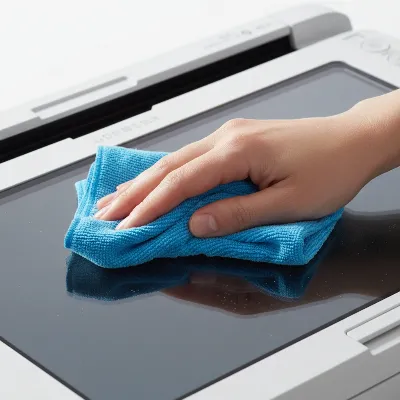 A hand wiping the glass of a document scanner with a microfibre cloth, emphasizing proper maintenance for PDF scanning quality.
Conclusion
Digitizing your documents into PDF format is a powerful step towards a more organized, efficient, and secure workspace. Whether you opt for the convenience of a mobile app, the versatility of a desktop scanner, or the power of a high-volume sheet-fed machine, the key lies in understanding your specific needs and leveraging the right tools and techniques. By applying smart preparation, optimizing settings, and maintaining your equipment, you can consistently produce high-quality, searchable, and easily manageable PDF files. Embrace these strategies to transform your paper-based processes into a seamless digital workflow, saving time, space, and effort in the long run.
What steps will you take today to begin your journey toward a paperless and more productive environment?
Frequently Asked Questions
What is OCR and why is it important for scanning documents to PDF?
OCR, or Optical Character Recognition, is a technology that converts images of text into machine-readable text data. When scanning documents to PDF, OCR allows the text within the scanned image to become searchable and editable, making your digital documents much more functional and easier to manage than simple image-based PDFs.
Can I scan multiple pages into a single PDF file?
Yes, most modern scanners and scanning software, including many mobile apps and desktop applications, allow you to combine multiple scanned pages into one single PDF document. For physical scanners, this is often facilitated by an Automatic Document Feeder (ADF).
What resolution (DPI) should I use when scanning documents to PDF?
For standard text documents where readability is key, a resolution of 200-300 DPI (dots per inch) is generally recommended. If you are scanning photos or documents with fine print, intricate graphics, or for archival purposes, a higher resolution of 600 DPI or more might be necessary to capture all details accurately.
Is it possible to scan documents to PDF without a dedicated scanner?
Absolutely. Many smartphone applications, such as Adobe Scan and Google Drive’s built-in scanner, can transform your phone’s camera into a portable Document Scanner. These apps often include features like automatic edge detection, image enhancement, and direct saving to PDF format.
How can I make sure my scanned PDFs are secure?
To secure your scanned PDFs, use software that offers password protection, encryption, or digital signature capabilities. Many advanced PDF editing suites allow you to apply these security measures, ensuring that sensitive information remains confidential and that documents cannot be tampered with without authorization.