The modern world often promises a paperless existence, yet piles of invoices, contracts, receipts, and personal records continue to accumulate. While scanning these documents might seem like the first step towards digital freedom, simply converting paper to pixels without a clear organization strategy merely shifts the chaos from your filing cabinet to your computer. Effective organization of scanned documents is crucial for maintaining order, enhancing accessibility, and securing your valuable information.
This comprehensive guide will walk you through proven strategies, intelligent naming conventions, and essential tools to transform your digital document landscape from a disorganized mess into a highly efficient, searchable archive. We’ll explore various methods to structure your files, optimize them for quick retrieval, and keep your digital life perfectly in order.
Understanding the Need for Digital Document Organization
Digitizing documents offers immense benefits, including reduced physical clutter, enhanced searchability, easier backups, and remote accessibility. However, these advantages only materialize with a thoughtful organizational system. Without it, finding a specific scanned receipt or contract can be as frustrating as sifting through a stack of physical papers. The core principle is not just to scan, but to scan with a purpose, ensuring each document is immediately useful and retrievable. For document scanners buying guides on this site.
A critical first step is to ensure your scanned documents are not just images, but searchable documents. This is achieved through Optical Character Recognition (OCR) technology. When a document is scanned with OCR enabled, the text within the image is recognized and converted into machine-readable text. This means you can search for keywords within the document’s content, making it instantly more valuable than a static image. Relying on search without structure is risky, but a combination of both provides the most robust solution.
Establishing a Robust Folder Structure
The foundation of any effective digital organization system is a well-planned folder structure. There isn’t a single “correct” way to do this; the best structure is one that intuitively matches how you think about and retrieve your documents. Consistency is key, so choose a system and stick to it.
Here are some common and effective approaches to structuring your folders:
- By Department/Category: This method is ideal for business or complex personal finances. Top-level folders might include “Finance,” “HR,” “Legal,” or “Medical,” with sub-folders for specific document types and years within each. For example:
Finance > Invoices > 2024 > January. This works well when different categories manage their own records. - By Document Type: If you frequently access specific types of documents, regardless of the department or year, this structure can be very efficient. Top-level folders could be “Invoices,” “Contracts,” “Bank Statements,” or “Receipts.” Sub-folders might then be organized by year or by the entity involved. For example:
Contracts > Active > Supplier Contracts > Acme Ltd. - By Year or Date: Many individuals and businesses with strong chronological filing habits prefer this. Top-level folders are organized by year, with sub-folders for quarters, months, departments, or document types. Example:
2024 > Q1 > Finance > Invoices. This is particularly useful for annual cycles like tax preparation. - By Client/Project: For those managing multiple clients or ongoing projects, creating top-level folders for each client or project with sub-folders for document types, invoices, or correspondence can be highly effective.
The best approach often combines these methods. For instance, you might have top-level folders for “Personal” and “Business,” with “Business” then broken down by “Client,” and each client folder containing “Contracts,” “Invoices,” and “Correspondence.” The more granular you are in the organization process, the better the system will work.
Implementing Smart File Naming Conventions
Consistent file naming is arguably one of the most impactful strategies you can implement for a digital archive. A descriptive file name allows anyone to identify and understand a document without needing to open it, saving significant time and effort. Generic names like Scan_00347.pdf or Document_final_v3_REVISED.pdf are virtually useless.
Here are the core principles for establishing effective file naming conventions:
- Be Consistent: This is the most critical rule. A simple convention applied consistently across all your documents is far more effective than a perfect but inconsistently applied system.
- Be Descriptive: The file name should clearly indicate what the document is. Include enough information to identify the document, such as the date, document type, and a key reference or description.
- Put the Date First (YYYY-MM-DD): This is perhaps the most useful naming decision. Starting file names with the date in
YYYY-MM-DDformat (e.g.,2024-03-15) ensures that files automatically sort chronologically in any file manager, regardless of creation or modification date. Avoid ambiguous formats likeMM-DD-YYYYorDD-MM-YYYY. Crucially, use the document date (e.g., invoice issue date) not the scan date. - Avoid Special Characters and Spaces: Restrict file names to letters, numbers, hyphens (
-), and underscores (_). Spaces can cause issues in some systems or when sharing files online. Avoid characters like&,%,#,?,/,, apostrophes, and quotation marks, as these can break file paths or cause encoding problems. - Keep Short but Meaningful: While descriptive, aim for file names under 80 characters. Excessively long names can lead to long file paths, which increase the likelihood of errors and can be difficult to manage. Use meaningful abbreviations where appropriate, but ensure they are commonly understood.
- Use Consistent Separators: Whether you choose hyphens or underscores to separate elements in your file name, stick to that choice consistently.
A versatile pattern that works for most documents is:
YYYY-MM-DD_DocumentType_Reference_Description.pdf
Examples:
2024-03-15_Invoice_INV-4521_Acme-Supplies.pdf2023-11-01_Contract_C-2023-050_Software-License.pdf2024-01-20_BankStatement_Checking-Account_Q4-2023.pdf2025-02-10_OfferLetter_EMP-1234_Jane-Doe.pdf
> “Consistent file naming is a foundational element for efficient digital document management, allowing for instant identification and significantly streamlining retrieval.” – David Chen, Digital Archiving Specialist
Leveraging Document Management Software and Tools
While manual folder structures and naming conventions are powerful, dedicated Document Management Systems (DMS) offer advanced features, especially for larger volumes of documents or collaborative environments. A DMS goes beyond simple file storage, providing a platform to collect, organize, maintain, and secure both electronic and scanned files throughout their lifecycle.
Key features of a good DMS include:
- Centralized Storage: Often cloud-based, providing access from anywhere on any device.
- Full-Text Search: Advanced search capabilities powered by OCR, allowing you to find documents based on keywords within their content, even if you don’t know the exact file name or location.
- Version Control: Tracks changes and edits, allowing you to revert to previous versions if needed. This is invaluable for collaborative work.
- Access Control and Permissions: Manages who can view, edit, or delete documents, ensuring security and compliance.
- Workflow Automation: Streamlines processes by automatically routing documents for review, approval, or archiving.
- Collaboration Tools: Facilitates sharing, co-authoring, and commenting on documents with automatic monitoring of changes.
Several software options can assist with organizing scanned documents:
- Adobe Acrobat DC: An enterprise-grade solution for creating, editing, and organizing PDFs. It integrates cloud storage services like Dropbox and OneDrive and offers powerful OCR and document comparison features.
- Google Drive (with built-in scanner): For mobile users, the Google Drive app on Android and iOS includes a free document scanner. It captures documents, saves them as PDFs to the cloud, detects edges, corrects perspective, and can scan multiple pages. This makes it a great starting point for basic digital organization.
- Dedicated DMS Solutions:
- Folderit: Known for user-friendliness, it offers cloud-based storage, tagging, and integration with e-signature services like Docusign.
- LogicalDOC: A high-performance, intuitive platform with robust document management, knowledge management, and version control, available for various operating systems.
- FileCloud: Offers a hyper-secure, user-friendly platform with strong compliance, collaboration, and security features, including workflow automation and robust search.
- Other notable mentions include ABBYY FineReader (for OCR accuracy), SimpleIndex (for diverse scanning and organization tasks), and various mobile scanning apps like Adobe Scan and Swift Scan, which offer features like automatic text recognition, cloud integration, and in-app organization.
These tools can significantly simplify the process of digitizing, organizing, and retrieving your documents, transforming a daunting task into an efficient workflow.
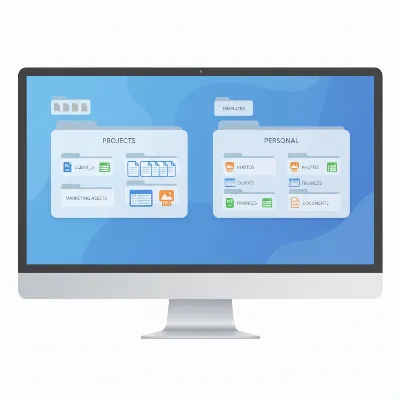 A digital document organization system with folders and files on a computer screen.
Best Practices for Scanned Document Management
Beyond choosing the right tools and structures, adopting a set of best practices will ensure your digital document organization remains robust and efficient over time.
- Establish a Regular Scanning Routine: Don’t let physical documents pile up. Create a consistent habit for scanning new documents as they arrive. This could be daily, weekly, or bi-weekly, depending on your volume. Regularly processing new documents prevents overwhelming backlogs.
- OCR Everything: As mentioned, always use OCR when scanning. This makes your documents searchable by content, which is a powerful complement to a good folder structure and naming convention. Many modern scanners and mobile apps have this feature built-in.
- Implement a Robust Backup Strategy: Digital documents are susceptible to hardware failure, accidental deletion, or cyber threats. Always have a backup strategy that includes both local storage (e.g., external hard drive) and cloud storage (e.g., Dropbox, Google Drive, OneDrive, iCloud Drive). Cloud services offer the benefit of accessibility across multiple devices and geographic redundancy.
- Prioritize Security: Especially for sensitive documents, security is paramount. Utilize strong passwords for your computer and cloud storage accounts. Some DMS solutions offer encryption and advanced access controls. For extremely sensitive documents, consider password-protecting individual PDF files.
- Define Retention Policies: Understand which documents you need to keep, for how long, and why (e.g., tax records for seven years, birth certificates permanently). Regularly review and purge unnecessary files to prevent digital clutter. This minimizes storage needs and simplifies future searches.
- Secure Physical Document Disposal: Once a physical document has been properly scanned, organized, backed up, and deemed no longer necessary in physical form, dispose of it securely. Shredding sensitive papers is essential to prevent identity theft or information breaches.
Troubleshooting Common Organization Challenges
Even with the best intentions, organizing scanned documents can present challenges. Here’s how to address some common hurdles:
- “Where Do I Start?”: The sheer volume of existing paper can be daunting. Begin by focusing on new incoming documents, applying your chosen system from day one. Once that routine is established, gradually tackle the backlog, perhaps starting with the most recent year or the most critical document types. Breaking the task into small, manageable chunks makes it less overwhelming.
- Inconsistent Naming or Filing: If multiple people are scanning or if you’re returning to a system after a break, inconsistencies can creep in. Document your chosen folder structure and naming conventions in a simple guide. Regular, brief training sessions or periodic spot-checks can help maintain compliance. Automation features in DMS software can also enforce consistency.
- Feeling Overwhelmed: When faced with a mountain of documents, it’s easy to get discouraged. Remember that perfection isn’t the goal; progress is. Set realistic goals, like organizing 10 documents a day or focusing on one category per week. Celebrate small victories to maintain momentum.
- Difficulty Finding Documents: Even with a good system, you might sometimes struggle to locate a specific file. This is where combining browsing (navigating your folder structure) with full-text search (using OCR’d content) becomes powerful. If your folder structure isn’t leading you to the document, a quick keyword search across your archive should.
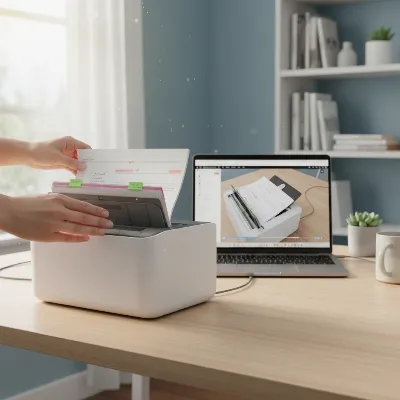 A person scanning a document into a computer for digital storage.
Conclusion
Organizing scanned documents on your computer is more than just tidying up; it’s an investment in efficiency, security, and peace of mind. By establishing a clear folder structure, implementing consistent naming conventions, and leveraging the power of document management software, you can transform your digital files from a source of frustration into a highly accessible and manageable asset. This journey to a more organized digital life requires discipline and a thoughtful approach, but the benefits of instant retrieval, reduced clutter, and enhanced data security are immeasurable.
Take the first step today: choose a system, scan with OCR, and commit to consistent practices. What digital organizing strategy has transformed your workflow the most?
Frequently Asked Questions
How often should I organize my scanned documents?
|
Our Picks for the Best Document Scanner in 2026
As an Amazon Associate I earn from qualifying purchases.
|
||
| Num | Product | Action |
|---|---|---|
| 1 | Canon imageFORMULA R10 - Portable Document Scanner, USB Powered, Duplex Scanning, Document Feeder, Easy Setup, Convenient, Perfect for Mobile Users |

|
| 2 | Epson WorkForce ES-50 Portable Sheet-Fed Document Scanner for PC and Mac |
|
| 3 | ScanSnap iX2500 Wireless or USB High-Speed Cloud Enabled Document, Photo & Receipt Scanner with Large 5" Touchscreen and 100 Page Auto Document Feeder for Mac or PC, White |
|
| 4 | ScanSnap iX1300 Compact Wireless or USB Double-Sided Color Document, Photo & Receipt Scanner with Auto Document Feeder and Manual Feeder for Mac or PC, Black |
|
| 5 | Brother DS-640 Compact Mobile Document Scanner, (Model: DS640) 1.5"x2"x11.9" |
|
| 6 | ScanSnap iX2500 Wireless or USB High-Speed Cloud Enabled Document, Photo & Receipt Scanner with Large 5" Touchscreen and 100 Page Auto Document Feeder for Mac or PC, Black |
|
| 7 | ScanSnap iX1300 Compact Wireless or USB Double-Sided Color Document, Photo & Receipt Scanner with Auto Document Feeder and Manual Feeder for Mac or PC, White |
|
| 8 | Canon imageFORMULA R40 Office Document Scanner Receipt Edition, for PC and Mac, Scan & Extract Data to QuickBooks Online, Color Duplex Scanning, Auto Document Feeder, Easy Setup for Office Or Home Use |
|
| 9 | Doxie Pro DX400 - Duplex Document Scanner and Receipt Scanner For Home and Office With Amazing Software for Mac and PC |
|
| 10 | Epson Workforce ES-C220 Compact Desktop Document Scanner with 2-Sided Scanning and Auto Feeder (ADF) for PC as Well as Mac |
|
Consistency is key. Ideally, integrate scanning and organizing into your routine as soon as new documents arrive—daily or weekly for high volumes, or at least monthly for personal use. Regular processing prevents backlogs from becoming overwhelming.
What is OCR and why is it important for scanned documents?
OCR (Optical Character Recognition) is technology that converts images of text into machine-readable text. It’s crucial because it makes your scanned documents searchable by their content, allowing you to find specific information within files even if you don’t remember the exact file name or location.
Is it safe to store all my important documents in the cloud?
When using reputable cloud storage providers like Google Drive, Dropbox, or OneDrive, storing documents in the cloud is generally safe due to their robust encryption and security measures. However, always use strong, unique passwords and enable two-factor authentication for maximum security.
Should I keep physical copies after scanning?
For most documents, once properly scanned with OCR, named, and backed up, the physical copy can be securely shredded. However, retain physical copies of original vital records (e.g., birth certificates, deeds, certain legal contracts) as per legal requirements or for sentimental value.
What’s the best file format for scanned documents?
PDF (Portable Document Format) is generally the best format for scanned documents. It offers excellent compatibility, preserves original formatting, can embed OCR text, and supports security features like password protection. For images, JPEG or PNG are suitable.
Can I organize scanned documents from my phone?
Yes, many mobile apps like Adobe Scan, Google Drive’s built-in scanner, and Swift Scan allow you to scan documents directly with your phone’s camera, apply OCR, and organize them into folders or upload them to cloud storage services, making on-the-go organization very convenient.
How do I handle old scanned documents that aren’t organized?
Start by organizing new incoming documents with your chosen system. For the backlog, break it down. Begin with the most recent year or the most critical document categories. Tackle a small, consistent number of documents daily or weekly rather than trying to do it all at once.
